Healthy Tech Habits at Home: Screen Limits & Kid Safety
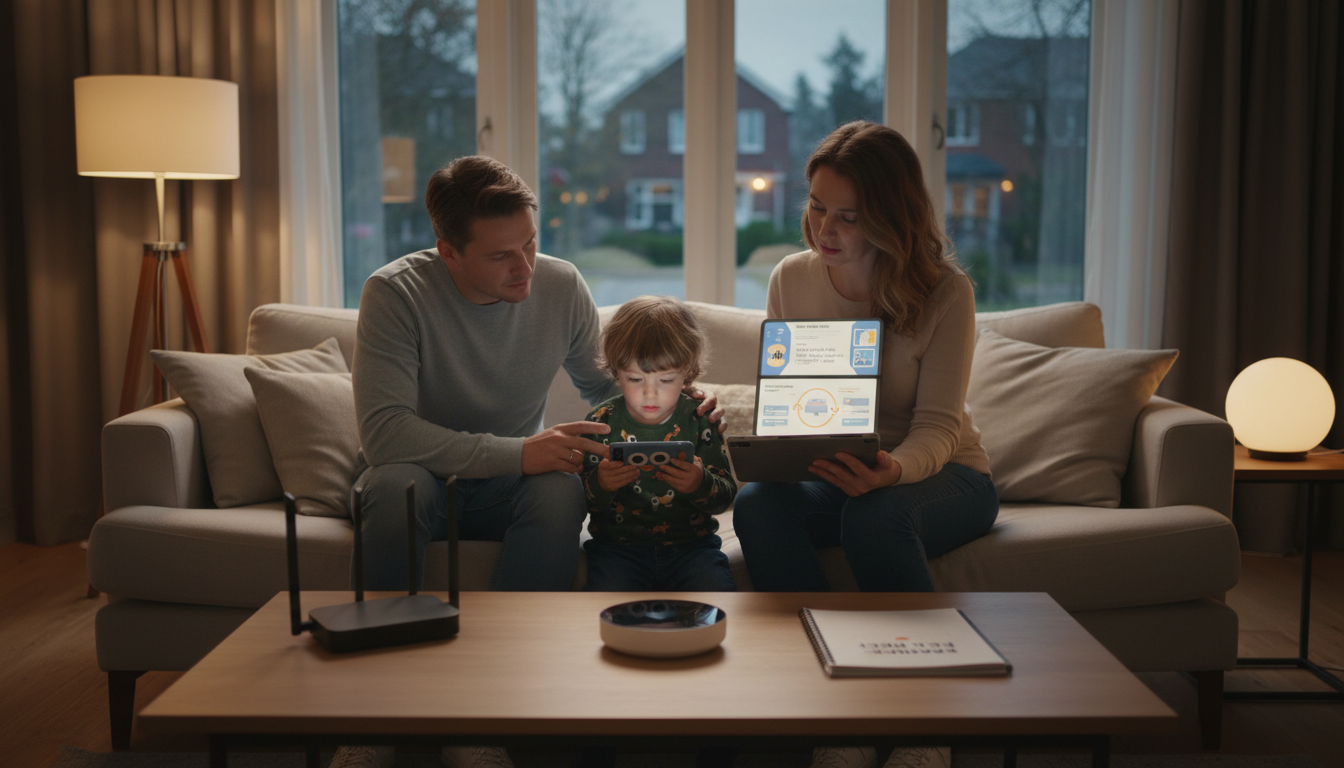
AI Bundle to Support Healthy Tech Habits: Screen Time Limits & Kid Protection Guides
Healthy tech habits are easiest to build when expectations are clear, devices are set up safely, and routines make offline time the default. This guide lays out a practical, family-friendly approach to setting screen time limits, reducing conflict, and improving digital safety—supported by an AI-powered bundle of kid protection and screen-time planning resources. For more guidance, see Screen time and children: How to guide your child – Mayo Clinic.
What “healthy tech habits” look like at home
Healthy tech habits don’t mean banning screens. They mean screens support learning and connection without replacing sleep, movement, and real-life relationships. The goal is a home setup where kids understand the “why” behind limits (safety, focus, mood, and long-term self-regulation) and parents rely on routines and tools—so enforcing boundaries isn’t a daily willpower contest. For further reading, see Screen Time Management Toolkit – Arms Wide.
At a practical level, healthy tech habits usually include:
- Consistent rules across caregivers and devices (phones, tablets, consoles, computers, TVs).
- Automatic supports like timers, downtime schedules, and content filters.
- Protected “offline anchors” every day: bedtime routine, meals, homework blocks, outdoor/play time.
- Clear separation between required screen use (school, creative projects) and entertainment.
If you want a strong starting point for family media guidelines, the American Academy of Pediatrics Family Media Plan is a helpful reference for aligning routines with values.
Start with a simple family tech plan (that kids can follow)
A good family tech plan is short, visible, and predictable. Start by defining non-negotiables, then add flexible “yes” options so the plan feels livable.
- Define non-negotiables first: sleep window, school hours, meal times, and phone-free zones (bedrooms and the table are common choices).
- Create a short list of approved apps/sites by category (learning, creative, communication, entertainment).
- Set “earning” rules for entertainment screen time (homework done, chores complete, outdoor time first).
- Pick a calm reset routine for conflict moments: pause, device down, two-minute breathing, revisit the plan.
- Decide shared expectations: device charging location, volume/headphones, respectful communication, and privacy boundaries.
Sample screen-time structure by age and routine
| Age group | Weekday entertainment screens | Best times to allow screens | Guardrails to set |
|---|---|---|---|
| Preschool (2–5) | Short blocks (30–60 min total, if used) | After nap/quiet time; co-view when possible | No bedroom screens; use kid profiles; prioritize educational content |
| Elementary (6–10) | 60–90 min total | After homework + outdoor play | Downtime schedule; app approvals; web filters; bedtime device cutoff |
| Tween (11–13) | 90–120 min total | After responsibilities; earlier evening only | Social settings review; messaging rules; reporting plan; device-free bedtime |
| Teen (14–17) | Flexible with accountability | Around activities and sleep needs | Nighttime lock; focus modes; privacy + safety check-ins; time audits |
Sleep is the easiest “truth meter” for whether the plan is working. If bedtime is sliding later or mornings are rough, tighten evening access first. For age-based sleep guidance, see the CDC sleep recommendations.
Screen time limits that actually stick
The most effective limits feel boring—in a good way. Predictability reduces negotiation, and automation reduces conflict.
- Use schedules instead of constant bargaining: set weekday and weekend templates.
- Make limits predictable: the same daily screen window removes guesswork.
- Prefer automatic cutoffs: device downtime, app limits, or router-based schedules.
- Separate required use from entertainment use to avoid punishing schoolwork.
- Build replacement habits: keep a quick list of offline options (sports, crafts, audiobooks, chores, board games).
- Review weekly: adjust based on sleep, grades, mood, and family time—then lock the plan for the next week.
A helpful mindset shift: screen time is easier to manage when the household has “default offline anchors” that happen first. Screens then become a planned activity—not the backdrop of the entire day.
Kid protection essentials: privacy, content, and communication
Kid protection works best when you set safer defaults before issues happen. Focus on three areas: what they can see (content), who can reach them (communication), and what they share (privacy).
How the AI bundle supports the process
If the hard part is turning good intentions into a routine everyone follows, a structured toolkit makes the difference. The AI Bundle to Support Healthy Tech Habits: Screen Time Limits & Kid Protection Guides is designed to reduce daily friction by giving caregivers ready-to-use planning resources and checklists.
To support routines beyond the school week, some families also like having digital planning resources for travel and downtime. If trips tend to trigger extra screen use, One Bag, Two Weeks, Zero Stress – How to Pack a Carry On for Two Weeks can help streamline packing so you can focus on the schedule and boundaries instead of last-minute chaos. For longer itineraries, A Packing Mastery Bundle for Southeast Asia – Packing List for Southeast Asia can be a planning add-on for families preparing for extended travel where device rules often loosen.
Common trouble spots (and quick fixes)
FAQ
What is a reasonable screen time limit for kids?
A reasonable limit depends on age and sleep, but many families do best with a daily range for entertainment screens while keeping school/required use separate. If sleep, mood, or school performance dips, tighten evening access first and re-balance toward offline anchors.
How can screen time limits be enforced without constant arguments?
Use predictable screen windows and automated downtime/app limits so the device “owns” the cutoff, not the parent. Add warnings before time ends, stick to pre-agreed consequences, and do a weekly review instead of renegotiating every day.
Which device settings improve kid safety the most?
Child accounts, content restrictions, purchase approvals, and web filtering provide the biggest safety gains quickly. Next, lock down communication controls, limit location sharing, and make sure kids know exactly how to report or show you inappropriate content or messages.
















Leave a comment